

Estimated Read Time: 2 minutes
What documentation or videos are relevant to this module?
It can be overwhelming and confusing to know what Resources are associated with what modules, let alone which Programs. Go Grants now has the functionality to ensure Resources are displayed right on the Summary of the related module and can be further refined by Program, so Applicants and Staff know exactly which Resources are relevant to them.
RESOURCE
What is it?
A Resource in Go Grants is a tool that provides content such as documentation, guidance, and videos to help explain expectations for Applicants or State Staff.
Resources can be configured for external (Applicant-facing) or internal (State Staff-facing) use through Link Visibility, and can be displayed either externally (e.g., login/homepage) or internally within the system, such as being linked to specific modules.
How?
Administrative Users with the ‘Can Manage Website Content’ Permission can configure a Resource and Administrative Users with the ‘Can Manage Module Settings’ Permission can link the configured Resource to the appropriate Module(s):
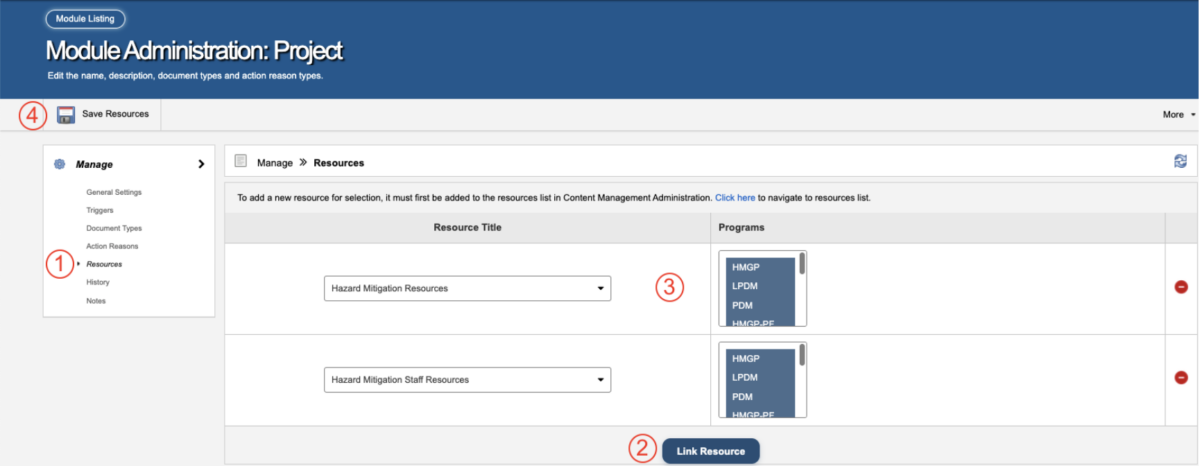
Navigate to the Module Admin for the desired module
- Click on the Resources tab
- Click the “Link Resource” button to add a new row
- Select the appropriate Resource and Program(s)
- Click “Save Resources” to apply your selection
What does it look like?
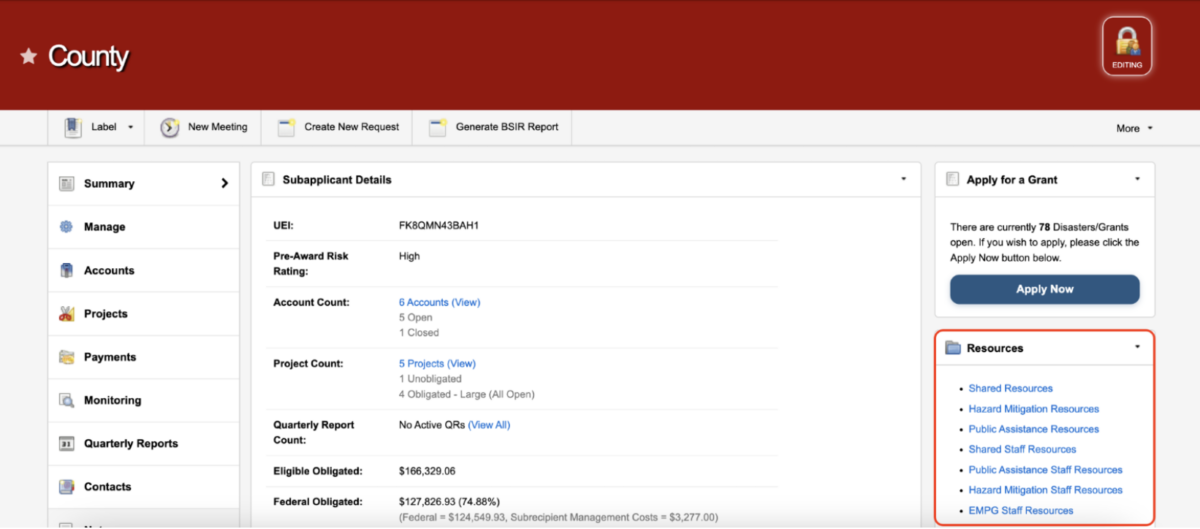
Modules that are NOT configured by Program display all Resources – check out this Applicant module Example, which has PA and Mitigation Resources:
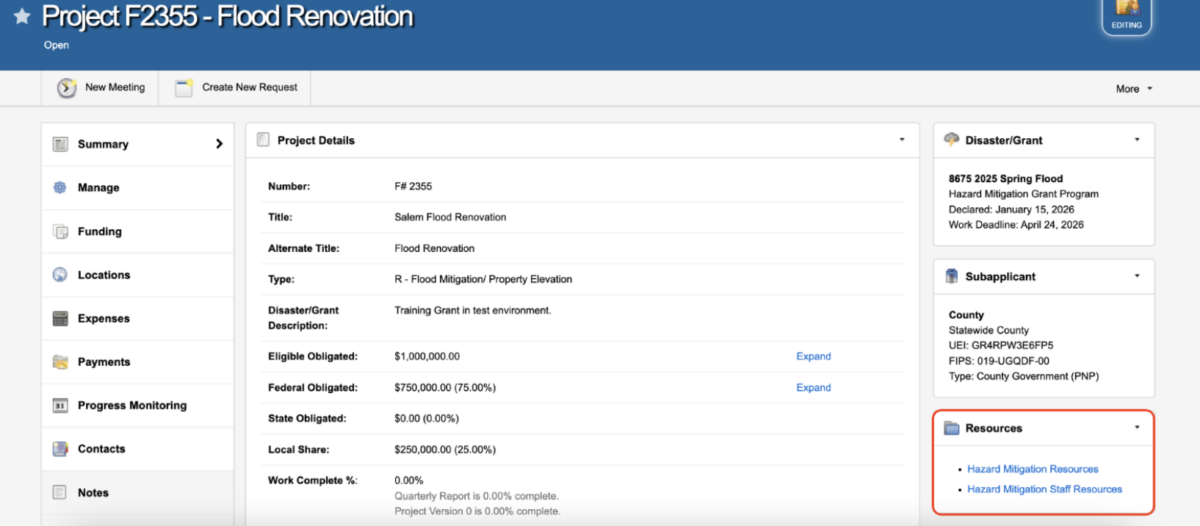
Modules that ARE configured by Program display only the relevant Resource – check out this Project module Example, which is a Mitigation Project therefore it only displays Mitigation Resources:
CONFIGURE YOUR MODULE-LINKED RESOURCES
Why link Resources to Modules?
Clarity: The Right Resource in the Right Place
Applicants and State Staff can quickly find the guidance, documents, or videos that apply to the module they are working in, without searching through unrelated Resources.
Relevance: Program-Specific Guidance
When a module is configured by Program, only the Resources tied to that Program are displayed, helping users focus on what applies to them.
Consistency: One Approved Source of Guidance
Users can access current approved guidance directly in Go Grants, reducing reliance on outdated emails, saved copies, or informal instructions.